The printer is controlled by settings in a set of ini files.
Please see the section about configuration files for more information.
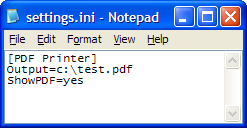
Here is a sample of a settings.ini file.
If you use this printer from a program it is possible to change the
settings directly from within your program. Take a look at the API documentation for more information on programmatic control.
You can change the settings listed in the table below.
| Setting | Description |
|---|
| PDF Printer Settings |
| Output |
The output setting allows you to direct the output of the PDF printer to a specific file.
When this setting is set the printer will not ask the user for a destination file name.
When setting the output it must specify a valid file name including the full path for a
PDF document. I.e. C:\TEMP\TEST.PDF where c:\temp is a valid folder.
If the output folder does not exist then the PDF generation will fail.
The output setting allows macro names as part of the file name. The following macro names can be used:
| <date> | The current date in the format yyyy-mm-dd. more... |
| <time> | The current time in the format hh.mm.ss. more... |
| <username> | Logged on user. more... |
| <computername> | Computer name. more... |
| <title> | Title of the printed document. more... |
| <author> | Author of the printed document. more... |
| <guid> | System generated GUID. more... |
| <docname> | Document name. more... |
| <basedocname> | Base part of the document name.
This macro gives you the part of document name up to the last dot.
If the document name is a file name then the resulting value is the file name without an extension.
more... |
| <personal> | Location of personal files.
more... |
| <env:environmentstring> |
This macro allows you to query the values of the environment variables.
I.e. <env:username> is substituted with the logged in user name.
more...
|
| <pageno> |
Page number for use in image creation. When creating images there will
typically be one output file for each page in the original document.
By using additional information in the <pageno> macro, you can control
the padding width and character. <pageno,3> will pad the page number
to a width of 3 characters (001, 002, etc.). <pageno,3,-> will use a
dash as padding character and produce a different result (--1, --2, etc.).
more...
|
| <counter> | The value of a system counter.
more... |
| <utc> | The current UTC date and time.
more... |
| <now> | The current date and time.
more... |
| <ticks> | A large integer that
represents the number of 100-nanosecond intervals that
have elapsed since 12:00:00 midnight, January 1, 0001.
more... |
| <vbs:function> |
Call a VB Script function and insert the return value of this function.
The function must be in a .vbs file in the MacroDir.
You can also write VB Script expressions directly in the macro.
I.e. <vbs:MyFunction> is substituted with the return value of a function named MyFunction.
<vbs:2+2> is substitured with 4.
more...
|
When using the macro names in the settings.ini file the output parameter could look
something like this:
Output=<env:appdata>\<docname> <date>.pdf
|
| SmarttitleFind1 and SmarttitleReplace1 |
If you use the <smarttitle> tag in the output setting,
it will use some built-in settings to find and replace text from the file name.
With the settings SmarttitleFind1 and SmarttitleReplace1 you can extend
the set of find and replace strings used by the smarttitle macro tag.
Example:
SmarttitleFind1=abc
SmarttitleReplace1=ABC
SmarttitleFind2=123
SmarttitleReplace2=
These lines in the configuration will search for abc and replace it with ABC.
It will also search for 123 and remove it.
|
| ConfirmOverwrite | Determines if the user has to confirm the
overwrite of an existing PDF file.
values: yes (default), no |
| ConfirmNewFolder | Warn the user before creating new folders if the output file name contains folders that does not exist yet.
values: yes (default), no |
| ShowSaveAS | When should the "Save AS" dialog be shown? If you
use the "nofile" setting then the dialog is only shown if no output
setting is specified.
values: nofile (default), always, never. |
| ShowSettings | This setting determines if the user will see
the settings dialog when a PDF is created.
values: always, never. |
| ShowPDF | Specifies if the resulting PDF file should be shown after generation. This setting can have the following values: yes, no, ask. |
| OpenFolder | Setting openfolder=yes will open the output folder in the file explorer when the conversion is done.
values: yes, no (default). |
| AfterPrintProgram | The AfterPrintProgram setting is a hook into the printing process.
If you specify this setting it must contain a valid command line that will be launched when the
PDF document is created. The command line can include the %1 token that will be substituted with
the full path of the created PDF file. %2 will be the number of pages created. %3 is the number of files created. %4 is the path the status file.
The command specified here will run regardless of the
result of the document creation. For conditional command lines you should use
RunOnSuccess and RunOnError.
Read more |
| AfterPrintProgramDir | You can use
this setting to specify the current directory for the execution of the AfterPrintProgram command line.
Read more |
AfterPrintProgramMode
version 7.1.0.1150 |
The mode is used to control if the program is started as hidden, normal, minimized,
or maximized.
values: normal (default), hide, minimized, maximized.
Read more |
| RunOnSuccess | Like the AfterPrintProgram setting this specifies a command line that will be
executed if the document was successfully created. %1, %2, %3 and %4 will have the same function as with AfterPrintProgram.
Read more |
| RunOnSuccessDir | Using this setting you can optionally set the current directory when the RunOnSuccess command line is executed.
Read more |
RunOnSuccessMode
version 7.1.0.1150 |
Works like AfterPrintProgramMode for the RunOnSuccess setting.
Read more |
| RunOnError | A command line that should be run in case of an error.
%1, %2, %3 and %4 will have the same function as with AfterPrintProgram. You should consider setting SuppressErrors=yes when you use the RunOnError setting.
Read more |
| RunOnErrorDir | Current directory for the command line set in the RunOnError setting.
Read more |
RunOnErrorMode
version 7.1.0.1150 |
Works like AfterPrintProgramMode for the RunOnSuccess setting.
Read more |
| StatusFile | The full path of a file name used as a status file.
A status file is created after the print job. This file holds information about the last operation. |
StatusFileEncoding
version 7.0.0.915 | This setting determines the character encoding of the status file set in the StatusFile setting. The default is Unicode encoding without the 0xFF 0xFE header.
If you use the Unicode value for this setting then the file will have the header bytes.
By default it is left out for backward compatibility.
values: ASCII, Unicode. |
| ShowProgress | Using this setting you can optionally disable the progress notification in the system tray. By default the progress indicator is shown.
values: yes, no. |
| ShowProgressFinished | The current version shows a balloon tip when the document is created. You can disable this tip by setting this value to no.
values: no, yes. |
| DisableOptionDialog | Disable the user from running the printer options program. The most common place for this setting is in the global.ini file.
values: yes, no. |
| GhostscriptTimeout | Use this setting to change the timeout value for Ghostscript operations. If your print jobs are very large, the default timeout of 300 seconds may be too little. The value of this setting is the number of seconds the printer will wait for Ghostscript to finish creating the PDF document. |
| RememberLastFileName | Remember the last file name specified by the user.
values: yes, no (default). |
| RememberLastFolderName | Remember the last folder name specified by the user.
values: yes, no (default). |
| SuppressErrors | If you choose to suppress errors then the dialog showing error information will not be shown.
This is particular useful if you share the printer or use the RunOnError setting.
values: yes, no (default). |
| MacroDir | Be default the printer scans the macros folder for VBS files when loading the VBScript macros. This setting can change location where the macros are loaded from.
values: any valid path to a folder. |
| LicenseFile | Load a different license file. With this setting you can make the printer load a different license file.
By default it looks for a license.xml in the program folder of the printer.
This setting is most often used in redistribution scenarios.
|
| LicenseData | As an alternative to the LicenseFile setting,
you can use the LicenseData to set a specific license when
creating a PDF. When you have a redistribution license, this
is the preferred way to do it. Set the LicenseData value when
you create your runonce.ini file using the API.
The license data you set in this value is something that you
receive when you order the redistribution license.
|
| ExtractText | Tells the printer to make a text representation of the print job.
This text can be parsed by event handlers in VBScript and used for setting document properties.
values: yes, no (default) |
| TextFileName | If you use the ExtractText feature, you can use the TextFileName setting to
tell the printer which file name and path to use when the saving the text file. |
| ImageCompression | By default the images in your PDF document will be compressed to make the resulting document smaller in size.
This compressiona can be turned on and off with this setting
values: no (default), yes |
ImageCompressionType
version 10.12.0.2363 |
With the commercial distiller, you can choose which image compression type you want to use. Flate compression produces the best results with artificial images such as screenshots and diagrams.
JPEG compression is better for photos.
This setting only works with image compression turned on.
values: flate (default), jpeg |
ImageCompressionLevel
version 10.12.0.2363 |
The commercial distiller supports different levels of compression.
Choosing a higher level will normally result in a smaller document and longer processing times.
This setting only works with image compression turned on.
values: 0, 1, 2, 3, 4 (default) |
ImageCompressionQuality
version 10.12.0.2363 |
When using JPEG compression with the commercial distiller, you can set the quality using this setting.
The quality is specified as an integer from 0 to 100 (best).
This setting only works with image compression turned on.
values: 0 - 100 (default is 75) |
| PDF Watermark Settings |
| WatermarkText | The text you want in your watermark. |
| WatermarkRotation | The water mark can be rotated. Specify an
integer value between 0 and 360. You can also specify the value 'c2c' or
'-c2c'. This will rotate the watermark in the direction 'Corner to
Corner'. |
| WatermarkColor | The color of the watermark. Color values are specified as HTML colors in an #RRGGBB format. If this value is specified it will override the WatermarkTransparency setting. |
| WatermarkFontName | Name of a truetype font file. The default value is arial.ttf. |
| WatermarkFontSize | Size of the font used in the watermark. The default size is 45. |
| WatermarkOutlineWidth | By default the watermark is written with an outlined font. You can customize the with of the outline.
values: an integer value. (default = 2) |
| WatermarkLayer | The watermark can act both as a watermark and a stamp. Some applications prints in a way that will hide watermarks that are placed under the original print.
Here it comes in handy to be able to place the text above the original print.
values: top (default), bottom. |
| WatermarkVerticalPosition | The vertical position of the watermark.
values: top, center (default), bottom. |
| WatermarkHorizontalPosition | The horizontal position of the watermark.
values: left, center (default), right. |
| WatermarkVerticalAdjustment | Adjustment in the vertical position of the watermark. The specified value is a percentage of the page height. |
| WatermarkHorizontalAdjustment | Adjustment in the horizontal position of the watermark. The specified value is a percentage of the page width. |
| WatermarkSize | This setting is obsolete. Use WatermarkFontSize instead.
Old description: An integer value between 1 and 100 indicating
the size of the watermark text. The default value is 6. |
| PDF Merge Settings |
| MergeFile | Specifies a PDF file name if you want to merge the
current output with an existing PDF file.
Merge operations involving multiple documents are documented
here |
| MergePosition | If you specify a merge file this parameter
will determine the position of current PDF output in the merged result.
Valid values are 'bottom' (append) and 'top' (prepend). The default is
'bottom', which will append your current PDF output to the PDF file
specified in the MergeFile parameter. |
| Superimpose | With the superimpose parameter you can lay two
documents on top of each other. The superimpose parameter must point to
a PDF file name, which will be the template. All pages of your current
output will be created with the first page of the superimposed PDF file
as background. Please note that if your current output paints the
background you will not be able to see the template underneath.
Setting different backgrounds for individual pages |
SuperimposeLayer
version 6
|
Much like the watermark layer setting you can also control if the superimposed
document is placed over or under the current print job.
values: top, bottom (default). |
SuperimposeResolution
version 6
|
When the superimposed document is prepared for the operation some parts
of it is rasterized. Use the SuperimposeResolution setting to control
the resolution used in this operation. A higher resolution will result in
a better quality but also increase the size of the created document.
If you are running the professional or expert editions then you can
specify the value 'vector' instead of a number. This will normally
produce the best result.
values: vector or 1 - 14400 (300 or 600 are fine for most documents).
|
| PDF Security Settings |
| OwnerPassword | Password for the owner of the document. |
| UserPassword | Password for the users of the document. |
| KeyLength | Specifies the length of the encryption key. Supported
lengths are 40, 128, and 256 bits. The default key length is 128 bits. Later versions also support AES encryption.
values: 40, 128 (default), AES128, AES256
|
| Permissions | Permissions that apply to the users who access
the document via the user password. See the permissions section for more details. |
| PDF Document Settings |
| Target | The target device sets the quality of the PDF
document. Better quality results in larger PDF files. Available targets
are screen, ebook, printer, prepress and default. Please note that it is case sensitive. Specifying an invalid value will most likely result in an empty pdf file. |
| Author | Author of the PDF document. |
| UseDefaultAuthor | The default author of the document can be
used in case no author is set using the Author setting.
values: yes, no. |
| Title | Title of the PDF document. |
| UseDefaultTitle | The default title of the document can be
used in case no title is set using the Title setting. |
| Subject | Subject of the PDF document. |
| Keywords | Keywords of the PDF document. |
| Creator | The name shown as the application that created the PDF. |
| Producer | The PDF Producer as shown in the PDF properties. |
| PDF Display Settings |
| Zoom |
Specifies the initial zoom factor of the PDF document when it is viewed.
The value is the zoom factor in percent. If no zoom value is specified or the value is 0 (zero)
then the initial view will fit the document to the window of the reader. Please note that not
all viewers respect this setting.
You can also specify the constants fitall or fitwidth. fitall will set
a zoom factor that will allow the whole page to be shown. This is the default value since version 4.
fitwidth adjusts the zoom to the width of the page.
|
| UseThumbs | Determines if the initial view of the document will include a list of thumbnail images for all the pages in the document.
values: yes, no (default). |
| AutoRotatePages | When a PDF is displayed in a PDF reader the page orientation is dictated by the PDF file. During the creation of a PDF file this orientation is written as a setting for each page in the file. The AutoRotatePages setting can help you control how this information is generated. If you enable auto rotation of pages then the orientation will be based on the content of the page. By leaving this setting blank you let the printer determine the orientation on a page by page basis. Automatic page rotation can be disabled if you specify none.
values: none, all. |
| Orientation | By using the orientation setting you can force the display of the pages to use a specific orientation. If the orientation is set then it will override the value of the AutoRotatePages setting. By default this setting is not set.
values: portrait, landscape, seascape, upsidedown. |
| Linearize | Using the linearize feature you can make the first page
of the PDF file display faster if it is opened from a web site and shown in a browser.
values: yes, no (default).
In Adobe Reader this will make it display
Fast Web View: Yes in the document properties. |
| Image Creation Settings |
Device
version 6
|
"bmpmono", "bmpgray", "bmpsep1", "bmpsep8", "bmp16", "bmp256", "bmp16m", "bmp32b",
"epswrite", "pswrite", "psraw",
"jpeg", "jpeggray",
"pcxmono", "pcxgray", "pcx16", "pcx256", "pcx24b", "pcxcmyk",
"pngmono", "pnggray", "png16", "png256", "png16m", "pngalpha",
"tiffgray", "tiff12nc", "tiff24nc", "tiff32nc", "tiffsep", "tiffcrle", "tiffg3", "tiffg32d", "tiffg4", "tifflzw", "tiffpack",
"pdfwrite", "docwrite"
|
DeviceList
version 6
| This setting is used to limit the choice of devices during image creation.
The DeviceList setting can be set to a comma separated list of valid devices.
DeviceList=png16m,jpeg will only allow output formats of JPEG and PNG type. |
Res
version 6
| Resolution of image in dots per inch. Unless values are specified in ResX or ResY this values is used for both horizontal and vertical resolution.
The default value is 150. |
ResX
version 6
| Horizontal resolution of image. |
ResY
version 6
| Vertical resolution of image. |
TextAlphaBits
version 6
| Determines the quality of antialiasing for text elements.
values: 1, 2, 4 (default) |
GraphicsAlphaBits
version 6
| Determines the quality of antialiasing for graphics elements.
values: 1, 2, 4 (default) |
| Digital Signatures and Certificates |
| SignStoreLocation
|
Tells the printer where it should look for the certificate identified
by the value set in the SignThumbprint setting.
This can be a file or the certificate store on the machine.
The certificate store can be either the user's certificate store
or the machine's store.
Values: file, currentuser, localmachine
|
| SignStoreName
|
Used together with SignStoreLocation and SignThumbprint to
locate a certificate in the certificate store on the machine.
Values:
my (Personal certificates),
addressbook (Other users),
authroot (Third-party certification authorities),
certificateauthority (Intermediate certification authorities),
disallowed (Revoked certificates),
root (Trusted root certification authorities),
trustedpeople (Trusted people),
trustedpublisher (Trusted publishers)
|
| SignThumbprint
|
The thumbprint value that uniquely identifies a certificate in
the user or machine's certificate store.
|
SignCertificate
version 9.2
|
Full path to certificate file used for the signature.
This is normally a PFX file, which is a certificate with a
private key and a password.
|
SignPassword
version 9.2
|
Password for accession the key in the certificate file.
|
SignReason
version 9.2
|
Optional reason for signing.
|
SignLocation
version 9.2
|
Optional location of signing. This is not the location of
the signature mark in the signed document.
|
ShowSignature
version 9.2
|
Defines if there should be a visible signature in the document.
values: yes, no (default). |
SignLLX
version 9.2
|
X-coordinate of the left lower corner for the visible signature.
Coordinates are given in units of 1/72 of an inch from the lower
left corner of the paper.
|
SignLLY
version 9.2
|
Y-coordinate of the left lower corner for the visible signature.
|
SignRUX
version 9.2
|
X-coordinate of the right upper corner for the visible signature.
|
SignRUY
version 9.2
|
Y-coordinate of the right upper corner for the visible signature.
|
SignPage
version 9.2
|
Page number the visible signature is shown on.
Starting with build 11.8.0.2728, you can set a value of -1,
which will place the signature on the last page.
|
| Other Settings |
| CompatibilityLevel |
PDF readers support different versions of the PDF format
specification. You can use this setting to tell the printer to
make your document compliant with a specific PDF version.
values: 1.1, 1.2, 1.3, 1.4, 1.5 (default), 1.6, 1.7
|
Format
version 6.0.0.865
|
Use this setting to make the resulting PDF document PDF/A-1B
compliant. The default value is blank. If you change the value
to pdfa1b it will try to make the document PDF/A-1b compliant.
|
WipeMethod
version 7.1.0.1107 |
In the process of creating PDF or image files a set of temporary files are created.
These files can contain the same sensitive information as the printed document.
Before the printer process unloads it will delete the temporary files.
However, in some situations it is not enough an you want to wipe these files before
deleting them.
values: 3pass, none (default) |
PrintEncrypted
version 7.2.0.1282
| Setting this value to yes will enable you to re-distill
encrypted PDF documents without being prompted to confirm ownership of the content.
values: yes, no (default) |
SharedOptionSetFolder
version 7.2.0.1282
| When this setting is not set then the shared option sets are located
in the common application data area. On a typical English Window 7 machine that
would be C:\ProgramData\PDF Writer\PRINTER NAME\Option Sets.
In case you want to share the option sets with other users on the network then
you can change this setting to point to a folder on a network location. |
AppendIfExists
version 7.2.0.1282
| Sometimes you would like to append to an existing output file if
the specified output file already exists. With this setting you can make
that the default behavior. The program will no longer prompt the user
to overwrite an existing file if this setting is set to yes.
values: yes, no (default) |
CustomGui
version 7.2.0.1282
| When customizing the PDF writer you might want to
substitute the normal user interface with your own.
If you use this setting to point to an executable file then it will
be shown instead of the built in dialogs.
The file name you specify can be either relative to the printer's
application folder or absolute.
See Custom User Interface
for more information on this. |
EmbedAllFonts
version 8.2.0.1405
|
This setting will control if fonts are included in the resulting
PDF document. When you embed the font the recipient will get the
full font with the PDF document. If the recipients should be able
to edit the PDF with a PDF editor then you should use this setting.
Embedding fonts will increase the size of the PDF document.
values: no, yes (default value depends on distiller)
|
SubsetFonts
version 8.2.0.1405
|
By only including a subset of the used fonts the document will be
smaller compared to embedding all fonts. The recipient should
still be able to view your document without having the same font
installed.
values: no, yes (default value depends on distiller)
|
ColorModel
version 8.2.0.1405
|
Specify the color model you want the distiller to use when processing
the print job. The color model may affect how specific colors in
your print job will look.
values: RGB, CMYK, GRAY
|
Distiller
version 8.2.0.1405
|
In case both the Ghostscript and the PStill distiller installed
with the printer then you can use the distiller setting to
control which distiller is used. It will use the value from the
distiller.ini in the printer's program folder if this setting is
blank.
values: Ghostscript, PStill
|
| DeleteOutput |
Sometimes it can be useful to delete the output after it is
created. It may seem a bit strange but in scenarios where
you use RunOnSuccess, RunOnError, or AfterPrintProgram, you
may not need the output file anymore at this stage.
values: no (default), yes
|
| User Interface Settings |
| HideTabs |
Hide tabs in the printing dialog.
Specify a list of tab identifiers that you want to hide from
the dialog that is shown when the user prints a PDF document.
hidetabs=general,dialogs,document,image,watermark,merge,
security
|
| HideOptionTabs |
Hide tabs in the options dialog.
Using the global.ini you can use the HideOptionTabs to hide
specific tabs in the options dialog. Use it with a
comma separated list of tab identifiers.
hideoptiontabs=general,dialogs,document,image,watermark,merge,
security,actions,signature,run,upload,other
version 10.10
|
| Upload to FTP or HTTP |
| UploadProtocol1
|
Sets the protocol for the upload of the document.
values: ftp, sftp, http, https
|
| UploadServerAddress1
|
Specify the server that will receive the uploaded document. Depending on the protocol, this can be a fully qualified server name or an IP address.
For protocols such as HTTP or HTTPS, it can also be a URL for the upload script on the server that will receive the file.
|
| UploadServerPort1
|
The port number on the server. This is used with FTP and SFTP transfers.
values: 21 is default for FTP and 22 for SFTP.
|
| UploadRetries1
|
You can specify retry intervals if you want the program to retry the upload in case
it fails. This setting is a list of numbers. Each number is the delay in seconds
until the next retry will happen.
example: 3,5,10 will wait 3 seconds before the first retry, then another 5 seconds
until the next etc.
|
| UploadUserName1
|
When server authentication is required, you can set this
user name.
values: The FTP/SFTP user name defaults to anonymous if it
is not set.
|
| UploadPassword1
|
The password used for server authentication.
values: The password defaults to anonymous if no user name or
password is set.
|
| UploadRemoteFile1
|
Enter the name and maybe the path of the destination file on the server.
You can use macros to define this name.
For FTP or SFTP uploads you could specify something like /remotedir/remotefile.ext.
values: The remote file name defaults to <output>.
|
| UploadPermissions1
|
Use this setting to specify the permissions on the uploaded file.
The FTP server will set the default file permissions if this is not specified.
Standard Chmod numbers are used to set permissions.
example: 777 means readable, writable and executable by all users.
|
| UploadServerValidationType1
|
This setting is used with SFTP to tell the server which
type of validation it should use. The client then tries
to validate the server's certificate or public key.
values: none, automatic
|
UploadHostKeyAlgorithms1
version 12.3
|
Algorithm used for authentication when using SFTP.
values: automatic (default), RSA, DSA
|
| UploadKnownHosts1
|
For SFTP you can optionally enter a list of know host names and their key file.
The list must have the for shown here:
servername1|keyfile1*servername2|keyfile2 etc...
values:
|
| UploadAuthenticationType1
|
Possible types of client authentication.
values: password, publickey, publickeyandpassword
|
| UploadPrivateKeyFile1
|
A private key can be used to authenticate the client with the server.
If your server requires that you authenticate with at private key, you can specify it here.
|
| UploadPrivateKeyPassword1
|
Here you should enter the password for your key file.
|
| Send Email |
Email
version 10.14
|
Send the document in an email.
values: no (default), yes
|
EmailTo
version 10.14
|
A list of email addresses separated by a semicolon.
|
EmailCC
version 10.14
|
A list of email addresses separated by a semicolon.
|
EmailBCC
version 10.14
|
A list of email addresses separated by a semicolon.
|
EmailSubject
version 10.14
|
Subject of the email.
|
EmailBody
version 10.14
|
Body text of the email. The body can be either plain text or HTML depending on
the value in EmailBodyType.
|
EmailBodyType
version 10.14
|
This specifies if the body is plain text, HTML or formatted text.
When the formatted type is selected then a plain text body is converted to
HTML content. This helps it display correctly in some email clients.
values: text (default), html, formatted
|
EmailBodyFile
version 10.14
|
Instead of setting the body text in the EmailBody setting, you can specify a
file name. Then it will load the body text from the specified file.
|
EmailAttachments
version 10.14
|
The email will always have the created file attached. If you want to attach other files
then you can specify a list of files separated by |.
You should specify the full path of the file names. All files should be on
local drives to avoid any authentication problems.
Ex. EmailAttachments=file1|file2|file3
|
EmailServer
version 10.14
|
Here you can specify the server name of an SMTP server.
If you specify a server then the email will be sent automatically
instead of being shown in the default email client.
When you send via SMTP it may be helpful to specify your own email
address in the EmailBcc list, so that you can keep a copy of the email.
|
EmailPort
version 10.14
|
If your SMTP server does not use the default port 25, you can set the port number here.
values: 25 (default)
|
EmailFrom
version 10.14
|
When sending SMTP mails, you need to specify a sender email address.
|
EmailUser
version 10.14
|
User name for the SMTP server authentication.
|
EmailPassword
version 10.14
|
Password for the SMTP server authentication.
|
EmailUseSSL
version 10.14
|
Some SMTP servers such as GMail require SSL communication.
values: no (default), yes
|
EmailRetry
version 10.14
|
If the sending of the email fails, you can tell it to retry.
This setting is a comma separated list of intervals between each retry.
Ex. 0.5,1,2 will retry after half a second, then again after 1 second and then wait
another 2 seconds before giving up.
values: no retry (default)
|
EmailIncludeSignature
version 12.0.0.2887
|
Control if the default email signature is used when the client type is Outlook.
values: yes, no (default)
|
EmailClientType
version 12.0.0.2887
|
Select the email client type to use for sending emails. Older versions of Outlook may need to use the mapi, mapi32, or mapi64 options.
values: auto (default), outlook, smtp, mapi, mapi32, mapi64
|
| Print To Printer |
PrintToPrinter
version 10.14
|
Send the document to another printer.
You can use this setting to print the created PDF file to
a normal printer after the PDF is finished.
values: no (default), yes
|
PrinterName
version 10.14
|
Name of printer to print to if a specific printer is used.
|
PrinterLoopProtection
version 10.14
|
By default the program will protect you from creating an
infinite loop where you send the print job to the PDF printer
again. This protection can be turned off.
values: no, yes (default)
|
PrinterSelection
version 10.14
|
How the printer will be selected.
You can use the default printer, ask the user, or
use the PrinterName setting to specify a specific printer.
values: usedefault (default), ask, specific
|
PrinterShowProgress
version 10.14
|
Show render progress.
values: no (default), yes
|
PrinterBitsPerPixel
version 10.14
|
Set the color depth of the rendered print job.
Valid values are 1, 4 (default), 8, 24.
|
PrinterJobName
version 10.14
|
Name of print job in the spooler queue.
|
PrinterMaxResolution
version 10.14
|
Maximum DPI resolution for print job.
|
PrinterScaleToFit
version 10.14
|
Scale the content to fit the paper.
values: no (default), yes
|
PrinterFirstPage
version 10.14
|
Page number of first page to print.
|
PrinterLastPage
version 10.14
|
Page number of last page to print.
0 is default and will print all pages after the first selected page.
|
PrinterTimeoutMilliseconds
version 10.14
|
Maximum time in milliseconds to wait for print job to render.
The default is 2 minutes (120000 milliseconds).
|
| Microsoft Word Documents |
MSWordRenderMode
version 10.14
|
Different methods can be used when the print job is
rendered as a MS Word document. Depending on the printing
program some methods will work better than others.
values: "exact", "flowing", "continuous" (default)
|
| Attachment Settings |
| AttachmentFile1 | Full path of the file to attach to the PDF document.
Not all file types are allowed for security reasons. |
| AttachmentName1 | The file name as it appears in the PDF attachment list.
Remember the extension when you specify the attachment name. |