Network Distribution
If you want to distribute the printer driver to many computers on your
enterprise network, this section will give you some ideas on how to do that.
I will try to cover a couple of different ways to do this depending on your infrastructure.
In case you use Active Directory (AD), you may want to distribute it using a Group Policy Object (GPO).
Alternatively, you can distribute it using a network share and a script such as a login script.
Active Directory and GPO
Most large Windows based computing environment have the ability to distribute
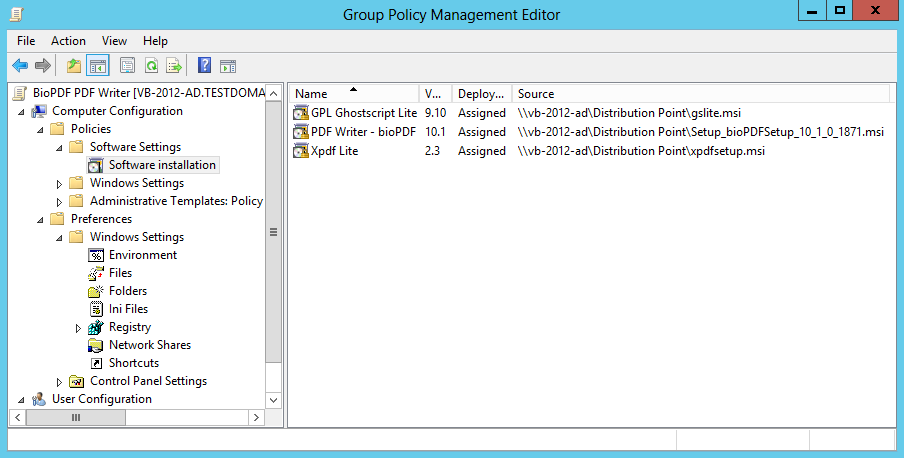
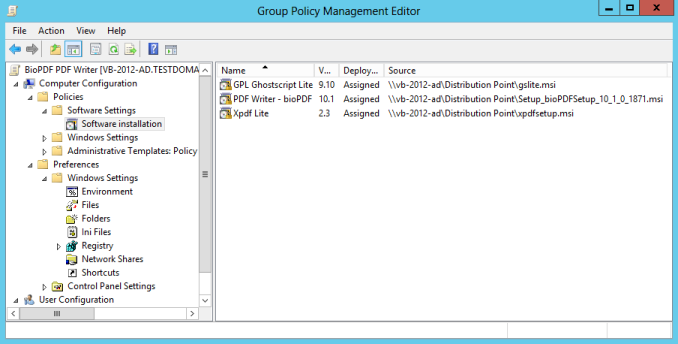
software packages using AD with GPO. Here is what you need to create your
GPO with the PDF Writer and your license.
After creating a GPO, you will need to add the printer MSI package along
with the dependencies. On the download
page, you will find the link to all the MSI packages you need to add.
Distributing the License
When you bought the license, you received a license.xml file that usually
needs to be installed in the printer's application folder.
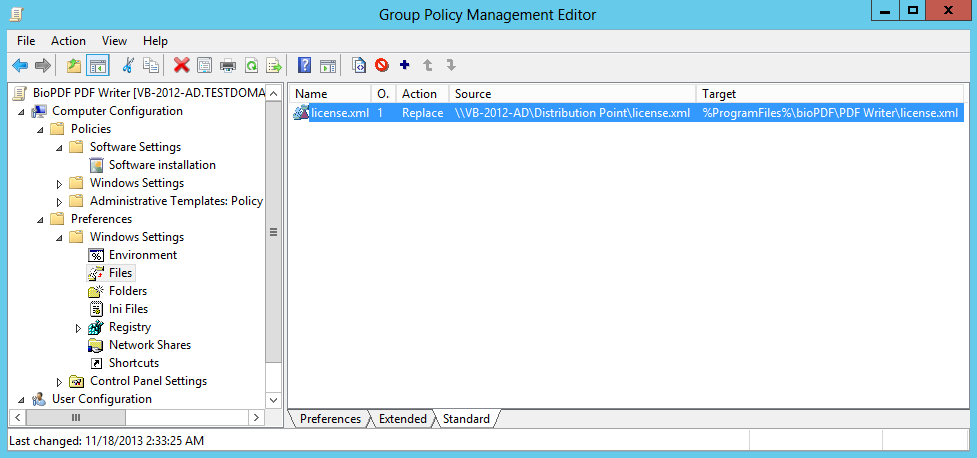
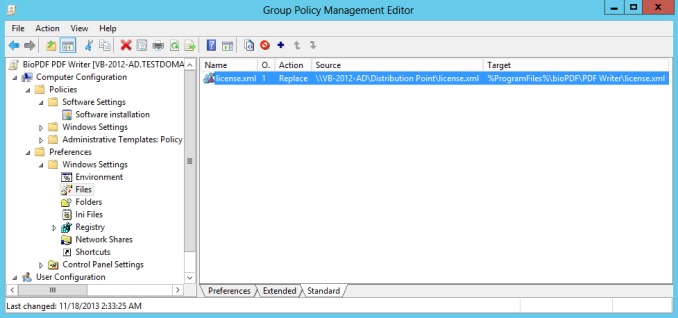
This can also be done using AD and GPO.
Files can be distributed in the GPO under Preferences->Windows Settings->Files
as shown in the image below.
It is important to know that the preferences (GPP) does not work under
Windows XP unless you have a hotfix from Microsoft.
Group Policy Preference Client Side Extensions for Windows XP (KB943729)
If you do not want to use the Windows XP hotfix and GPP then you
have the option to distribute the license using a GPO startup script or
a logon script.
Distribute Without Active Directory
In case you do not have or do not want to use GPO to distribute the printer
then you can use the following alternative solution.
This approach requires that you have basic understanding of the
unattended installation
and distributing dependencies.
The problems I want to address in the batch file rollout are the following:
- Make sure that all computers have the program installed.
- Make sure that all computers have the latest version.
- Doing the above without having to run the setup program every time a user logs on.
- Automatic distribution of required components as well as the printer driver itself.
To solve these problems I have developed the batch file shown here.
@ECHO OFF
@SET SetupFileName=Setup_PDFWriter_bioPDF_14_4_0_2963.exe
@SET VersionName=version6

@SET Destination=%ProgramFiles%\BIOPDF\PDF Writer
@SET VersionFile=%Destination%\%VersionName%.version

@SET BatchDir=%~dp0

IF NOT EXIST "%VersionFile%" GOTO INSTALL
GOTO NOINSTALL

:INSTALL
@ECHO Install Program
"%Batchdir%\%SetupFileName%" /sp /silent /norestart /nocancel
IF ERRORLEVEL==1 GOTO INSTALLERROR

@ECHO Remove old version files
DEL "%Destination%\*.version"

@ECHO Create Version file
@ECHO %USERNAME% > "%VersionFile%"
@GOTO END

:NOINSTALL
@ECHO Program is up to date
GOTO END

:INSTALLERROR
@ECHO Installation failed

:END
If you place this batch file in a folder together with the setup program
the installed version can be checked every time you run the batch file.
If the version does not match the one set
in the VersionName variable the setup program is started.
Change the settings in the beginning of the batch file
to match your environment.
You can include the Ghostscript distribution gslite.exe and other dependencies
together with this if you want to distribute these with the batch file.
One important detail in this scenario is that login scripts run in the
security context of the logged in user. This is a problem if the user
does not have permissions to install applications.
|